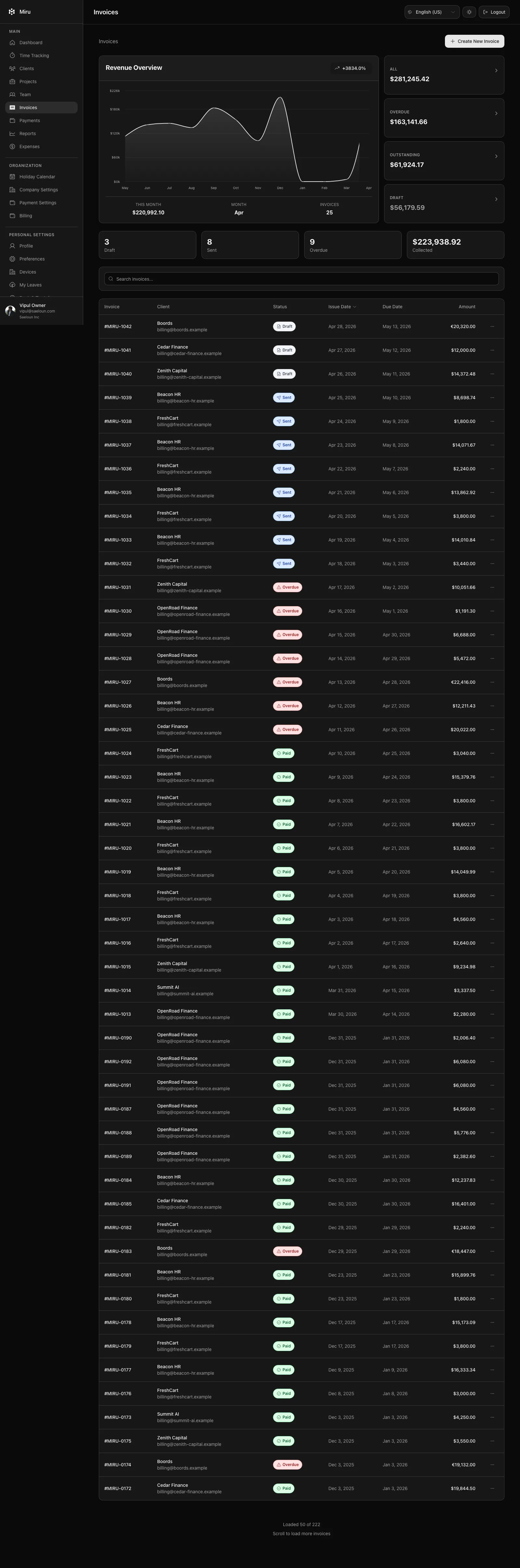
Open Invoices in the sidebar. The summary at the top shows how much is outstanding, how much of that is overdue, and what is still in draft. Below it, every invoice is listed with the client, invoice number, issue and due dates, amount and status.
Statuses
| Status | Meaning |
|---|---|
| Draft | Created but not sent. The time entries on it are locked so they cannot be invoiced twice. |
| Sent | Emailed to the client. |
| Viewed | The client opened the invoice link. |
| Paid | Payment recorded, either through the payment link or marked manually. |
| Declined | The payment was declined. |
| Overdue | Past its due date and not paid. |
| Waived | Written off. |
What you can do here
- Search by client or invoice number, and filter by status, client and date range.
- Create an invoice with Generate Invoice. See Creating a new invoice.
- Open an invoice to see its lines and history, or use the row menu for the actions available in its current status.
- Select several invoices to download their PDFs together or delete them in bulk.
Owners, admins and book keepers can see invoices; only owners and admins can create, send or delete them. Client contacts see their own client’s invoices in the client portal.